


SQL Server Reporting Services (SSRS) can run in two modes Native Mode (SSRS runs entirely on SQL) and SharePoint Integration Mode (SSRS uses SharePoint services). In our case, we will take a detailed look at deploying SQL Server Reporting Services (SSRS) in Reporting Services SharePoint Integration Mode, which provides the integration we need with SharePoint.
SSRS – Requirements
Deploying SSRS on SharePoint Server 2016 is not complicated, but it has its own requirements and procedures, from installing SQL Add-ins on SharePoint servers to creating and configuring the SharePoint service application ‘SQL Server Reporting Services Service Application’.
Before we begin, let's prepare by checking that our SQL and SharePoint environments meet the requirements, so that nothing stops us during installation and configuration.
Supported version combinations
The first requirement is to use a supported combination of SQL and SharePoint versions. The following table will help:
| Report server | Add-in | SharePoint version | |
|---|---|---|---|
| 1 | SQL Server 2016 | SQL Server 2016 | SharePoint 2016 |
| 2 | SQL Server 2016 | SQL Server 2016 | SharePoint 2013 |
| 3 | SQL Server 2014 | SQL Server 2014 | SharePoint 2013 |
| 4 | SQL Server 2014 | SQL Server 2014 | SharePoint 2010 |
| 5 | SQL Server 2012 SP3 | SQL Server 2014 and SQL Server 2012 SP3 | SharePoint 2013 |
| 6 | SQL Server 2012 SP2 | SQL Server 2014 and SQL Server 2012 SP2 | SharePoint 2013 |
| 7 | SQL Server 2012 SP1 | SQL Server 2014 and SQL Server 2012 SP1 | SharePoint 2013 |
| 8 | SQL Server 2012 and SQL Server 2012 SP1* | SQL Server 2014 | SharePoint 2010 |
| 9 | SQL Server 2012 | SQL Server 2012 | SharePoint 2010 |
| 10 | SQL Server 2008 R2 | SQL Server 2014 | SharePoint 2010 |
| 11 | SQL Server 2008 R2 | SQL Server 2012 and SQL Server 2012 SP1 | SharePoint 2010 |
| 12 | SQL Server 2008 R2 | SQL Server 2008 R2 | SharePoint 2010 |
| 13 | SQL Server 2008 R2 | SQL Server 2008 SP2 | SharePoint 2007 |
| 14 | SQL Server 2008 SP2 | SQL Server 2008 R2 | SharePoint 2010 |
| 15 | SQL Server 2008 SP2 | SQL Server 2008 and SQL Server 2008 SP2 | SharePoint 2007 |
In our case, the target farm is SharePoint Server 2016, so our only option is SQL Server and SQL Add-ins version 2016.
Server role
SSRS requires the servers in a SharePoint Server 2016 farm to use the Custom role definition (the MinRole feature).
Set the server role Custom using: Central Administration -> System Settings -> Convert server role in this farm

SQL Agent
SQL Agent must be running for the database instance. Check that the SQL Agent service for that database instance is running on the SQL server and its startup type is set to Automatic.

Local Security Policy settings
On each SharePoint server, check that the service account running the SharePoint SSRS service application has the following local policy permissions:
- Act as part of operating system
- Impersonate client after authentization
- Logon as a service
If the service account does not have these permissions, assign them (if you cannot change these settings, they are managed centrally through GPO).
Assign the permissions using: MMC -> Group Policy Object -> Local Cumputer Policy -> Computer Configuration -> Windows Settings -> Security Settings -> Local Policies -> User Rights Assigment

Claims to Windows Token Service
Claims to Windows Token Service must run on all servers in your farm (primarily all WFEs).
Check/start the service using: Central Administration -> System Settings -> Services on Server

SSRS – Installing SQL Add-ins
Once all requirements are met, we can begin the installation, specifically the SQL Add-ins. Install SQL Add-ins on all servers in your SharePoint Server 2016 farm (in practice, installing them on WFE servers is sufficient, but I recommend installing them on all servers).
To install the SQL Add-ins, use the installation media for Microsoft SQL Server 2016 (Developer, Evaluation, Standard, or Enterprise editions), which you run directly on each server in your SharePoint Server 2016 farm.
Then follow these steps:
Select: New SQL Server stand-alone installation or add features to an existing installation
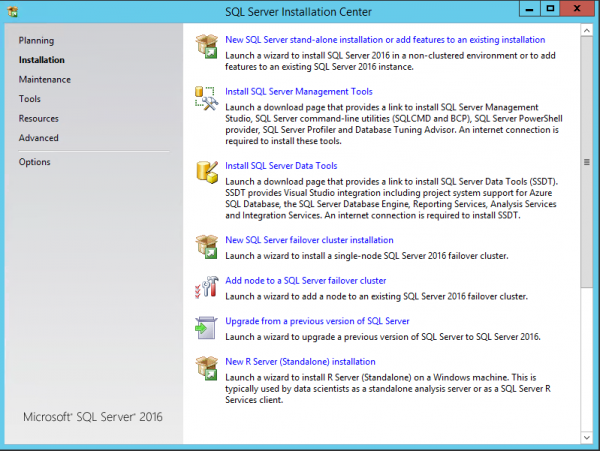
Select the checkbox: Reporting Services – SharePoint and Reporting Services Add-in for SharePoint Products

Select: Reporting Services SharePoint Integrated Mode -> Install only

After installation, restart the server.

Then run Windows Update to update the SQL Add-ins you have just installed (I recommend restarting the server again afterward).

SSRS – Creating the service application
Everything is now installed on the SQL side, and we can create and configure the SSRS service application.
In SharePoint Central Administration, create a new service application: SQL Server Reporting Services Service Application
Creating the SSRS service application: Central Administration -> Application Management -> Manage service application -> New -> SQL Server Reporting Services Service Application

Fill in the SSRS service application parameters. Remember to assign the required web application in the ‘Web Application Association’ section.


Afterward, verify that SQL Server Reporting Services Service is running on all WFE servers.
Verification: Central Administration -> System Settings -> Manage services on server

SSRS – Configuring Provisioning Subscriptions and Alerts
Once the service application has been created and started successfully, we can configure it, specifically Provision Subsciptions and Alerts.
Managing the SSRS service application: Central Administration -> Application Management -> Manage service application -> Reporting Services Service Application

Select: Provision Subsciptions and Alerts
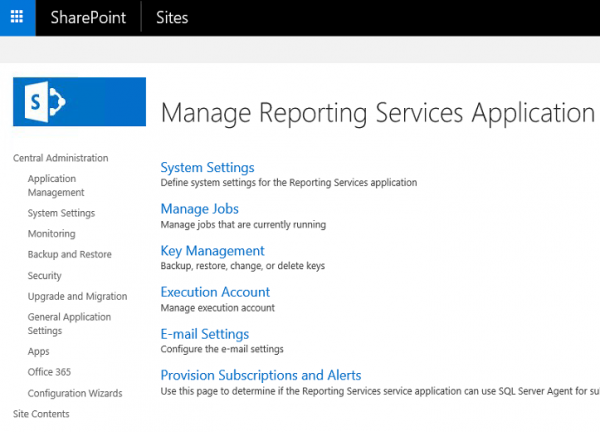
Download: Reporting Services Service Application-GrantRights.sql using the Download Script.


Use SQL Server Management Studio to connect to the database instance of our SharePoint Server 2016 farm, then run the downloaded Reporting Services Service Application-GrantRights.sql using the Execute.

Komentáře