


If you use Outlook Calendar to plan work or as a timesheet, displaying the total duration of selected items (Time Spent) is essential.
However, this function must be added manually as a macro and then as a custom ribbon action.
Time Spent – how does it work?
This macro is run manually through a custom ribbon action and icon.

Select calendar items while holding left Ctrl, then click Time Spent on the ribbon. When the macro finishes, a popup displays the selected items' total duration:

Time Spent – implementing the macro
- Start Outlook
- Use the shortcut Alt + F11 to open "Microsoft Visual Basic for Applications“
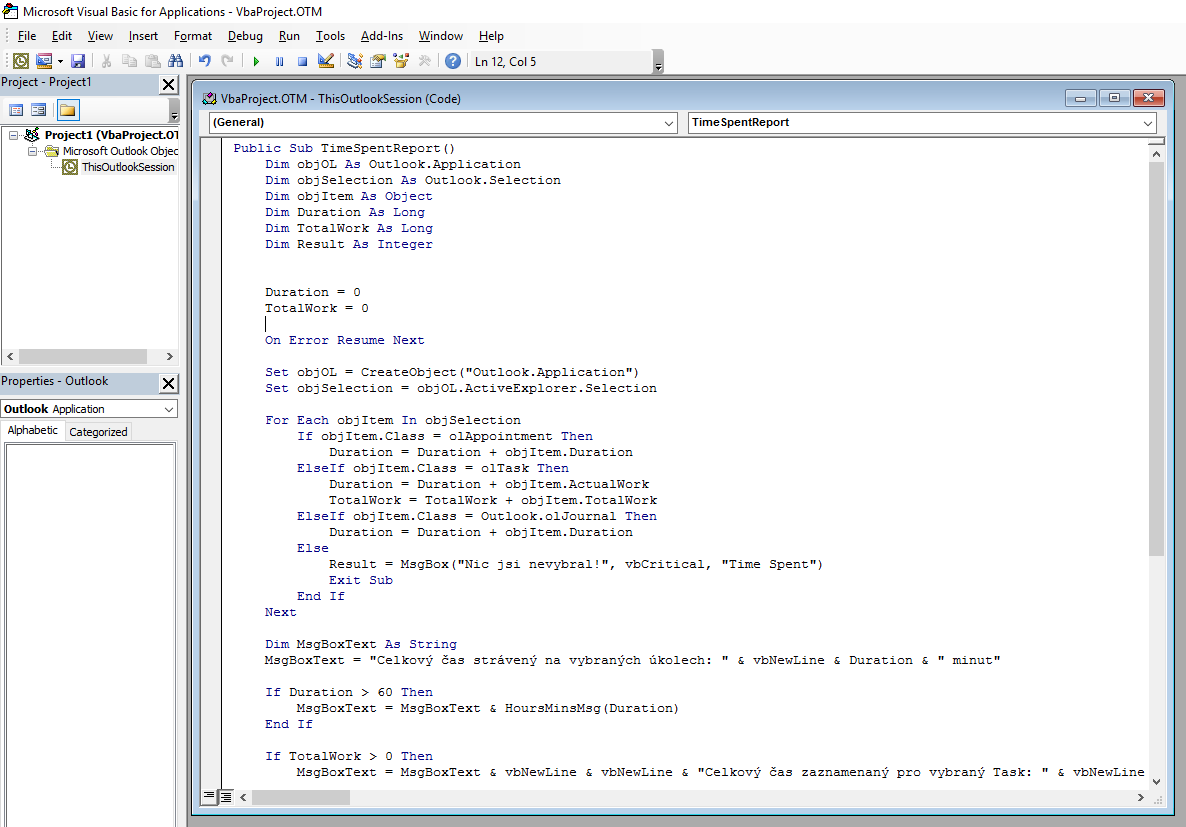
- Into "ThisOutlookSession", copy the macro:
Public Sub TimeSpentReport()
    Dim objOL As Outlook.Application
    Dim objSelection As Outlook.Selection
    Dim objItem As Object
    Dim Duration As Long
    Dim TotalWork As Long
    Dim Result As Integer

    Duration = 0
    TotalWork = 0

    On Error Resume Next

    Set objOL = CreateObject("Outlook.Application")
    Set objSelection = objOL.ActiveExplorer.Selection

    For Each objItem In objSelection
        If objItem.Class = olAppointment Then
            Duration = Duration + objItem.Duration
        ElseIf objItem.Class = olTask Then
            Duration = Duration + objItem.ActualWork
            TotalWork = TotalWork + objItem.TotalWork
        ElseIf objItem.Class = Outlook.olJournal Then
            Duration = Duration + objItem.Duration
        Else
            Result = MsgBox("Nic jsi nevybral!", vbCritical, "Time Spent")
            Exit Sub
        End If
    Next

    Dim MsgBoxText As String
    MsgBoxText = "Celkový čas strávený na vybraných úkolech: " & vbNewLine & Duration & " minut"

    If Duration > 60 Then
        MsgBoxText = MsgBoxText & HoursMinsMsg(Duration)
    End If

    If TotalWork > 0 Then
        MsgBoxText = MsgBoxText & vbNewLine & vbNewLine & "Celkový čas zaznamenaný pro vybraný Task: " & vbNewLine & TotalWork & " minut"

        If TotalWork > 60 Then
            MsgBoxText = MsgBoxText & HoursMinsMsg(TotalWork)
        End If
    End If

    Result = MsgBox(MsgBoxText, vbInformation, "Time Spent")

ExitSub:
    Set objItem = Nothing
    Set objSelection = Nothing
    Set objOL = Nothing
End Sub

Public Function HoursMinsMsg(TotalMinutes As Long) As String
        Dim Hours As Long
        Dim Minutes As Long
        Hours = TotalMinutes \ 60
        Minutes = TotalMinutes Mod 60
        HoursMinsMsg = " (" & Hours & "h " & Minutes & "m)"
End Function
Thank you to Jirka Hroch for customising the macro to my requirements :-).
- Use the "Floppy disk" icon or the menu commands File and Save to save the project
- After saving the macro, the "Microsoft Visual Basic for Applications" window can be closed
Time Spent – adding a ribbon action
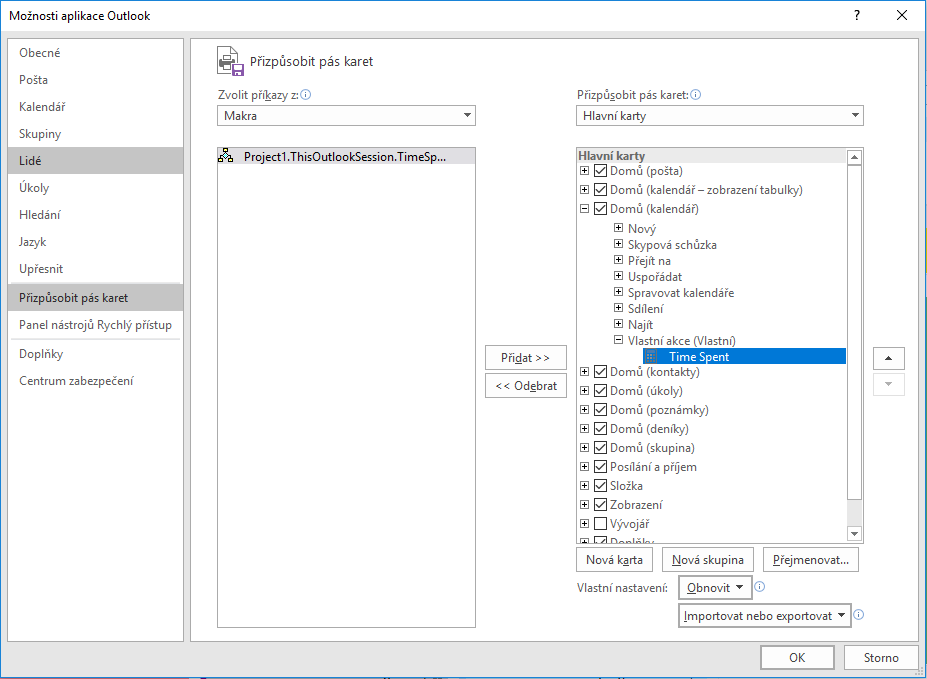
- Anywhere on the ribbon, right-click and select "Customize the Ribbon..“
- In the left-hand box "Choose commands from:” vyberte Macros
- In the right-hand box "Customize the Ribbon:” vyberte Main Tabs
- Expand "Home (Calendar)“
- Using right-click above "Home (Calendar)" create a group using "New Group"
- Rename it "Custom Action" by right-clicking and selecting "Rename"
- Add the macro "Project1.ThisOutlookSession.TimeSpent” do skupiny “Custom Action" using "Add >>“
- Rename the macro "Time Spent" by right-clicking and selecting "Rename
- Close with "OK”
Time Spent – configuring permissions
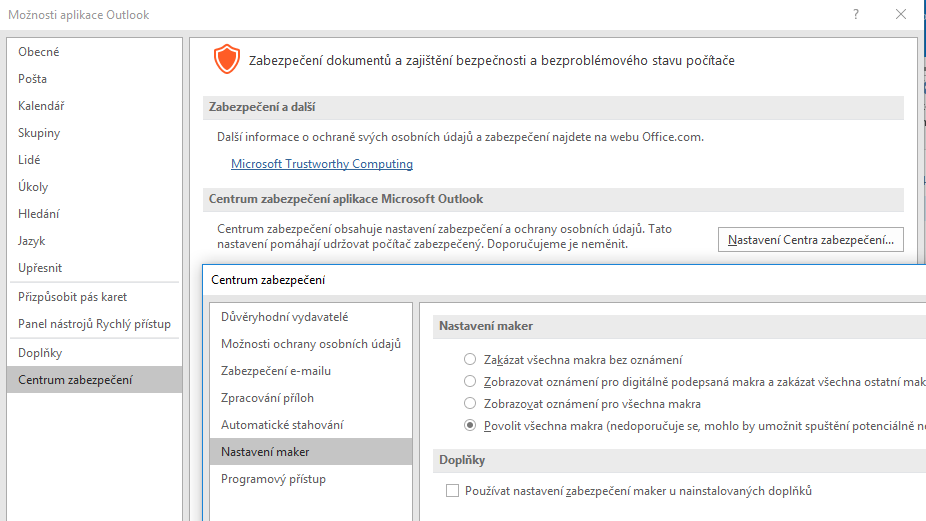
- On the ribbon, open "File", then "Options" to open "Outlook Options“
- Open "Trust Center" and click "Trust Center Settings…" to open "Trust Center“
- Under "Macro Settings” vyberte volbu “Enable all macros" (risking execution of unsafe code), or "Notifications for all macros" (requiring approval each time Time Spent runs)
Komentáře