


Group Policy can configure many aspects of the user environment in bulk, such as folder redirection, running scripts and deploying corporate software.
Configuration options for each GPO setting
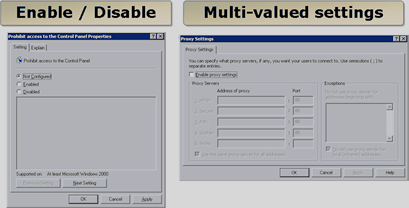
Individual GPO settings use these options:
- Enabled – enables the setting
- Disabled – disables the setting
- Not Configuret – the default value, indicating that the setting is not applied
- Multi-valued – some settings, such as PROXY, have specific options
Using Group Policy scripts
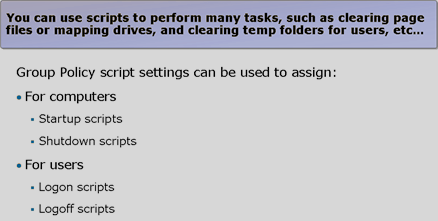
Group Policy can run scripts in bulk, divided into:
- logon and logoff scripts – configured in the user section
- startup and shutdown scripts (Startup/down scripts) – configured in the computer section
Folder Redirection
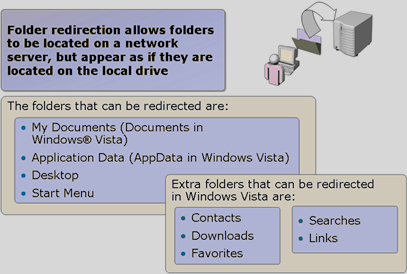
GPOs can redirect certain folders in bulk. For example, a company may require user documents to be stored on regularly backed-up network storage rather than locally.
Folders that can be redirected through GPOs:
Windows XP
- My Documents, (called Documents in Windows Vista,) including My Pictures
- Application Data, (called AppData in Windows Vista)
- Desktop
- Start Menu
Windows Vista and Windows 7
- Contacts
- Downloads
- Favorites
- Searches
- Links
- Music
- Video
- Saved Games
- Pictures
Folder redirection configuration options
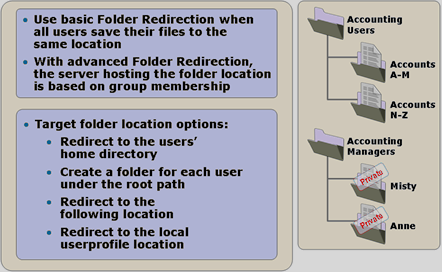 There are three folder redirection options: none, basic, advanced
Basic folder redirection
|
Type |
Description |
| Redirect to the following location |
Redirects the user's folder to a specified location. Use for redirected folders containing non-private data.
|
| Create a folder for each user under the root path | Commonly used to redirect users' document folders to company shared storage. Creates a separate directory for each user using %username%. |
| Redirect to the local user profile location | Redirects the folder back to its default location. |
| Redirect to the user's home directory | Available only for Documents folders, and usable if a home directory is configured. |
Advanced folder redirection (Advanced folder redirection)
Folders are redirected according to user security group membership. After specifying the group whose folders should be redirected, the same options as for basic redirection are available.
Securing redirected folders
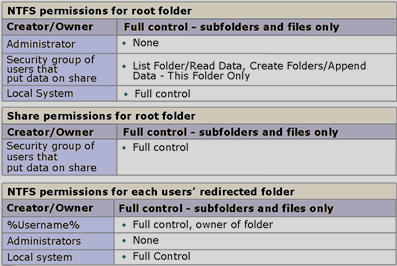 When creating shared folders manually, you need the correct permissions. This table shows the recommended security settings.
What are Administrative Templates?
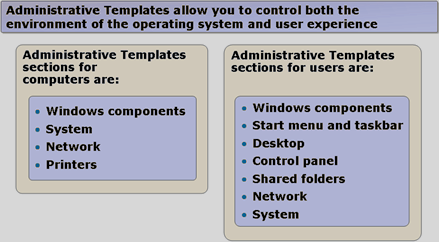 Administrative Templates control the operating system environment through predefined parameters. They primarily change OS behaviour through registry changes and are represented by ADM and ADMX files. There are two template sets: one for users and one for computers.
Modifying Administrative Templates
Because ADMX is XML-based, any text editor can modify an existing ADMX template or create a new one. Save the template in the Central Store and it is immediately available.
Group Policy Preferences
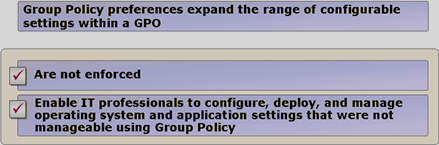
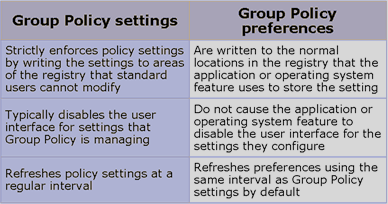 Preferences is technology acquired by Microsoft and integrated into Group Policy, extending its capabilities. It also replaces WMI filters, allowing conditions to be defined conveniently without specialist knowledge.
Configuration options for each Group Policy Preference
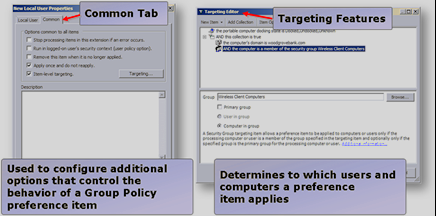 GPO preferences offer:
- Create – creates a new item
- Delete – deletes an item
- Replace – deletes and recreates an item
- Update – modifies an item
- Apply once and do not reapply – applies once without subsequently enforcing the setting
- Item-level targeting – replaces WMI filters
Using Group Policy Preferences
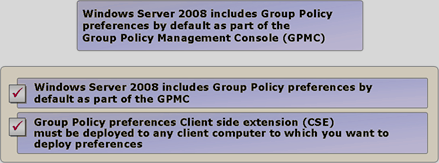
Preferences are included automatically from Windows Server 2008, XP SP3 and Vista SP1. To apply preferences on an older OS, first install the client-side extension (CSE).
Deploying software through Group Policy
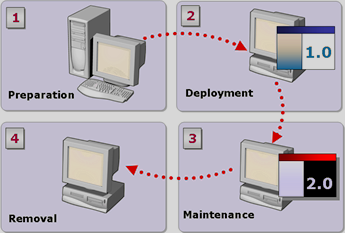
GPOs can install software in bulk, for example Office on all computers at once. Deployment has four phases:
- Preparation (Preparing the installation package)
- Deployment (Installing the package)
- Maintenance (Updates and modifications)
- Removal (Uninstallation)
How does installation package deployment work?
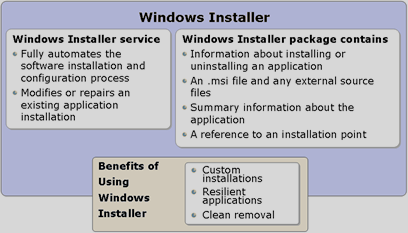
- only MSI packages can be used
- based on the Windows Installer service
Deployment methods
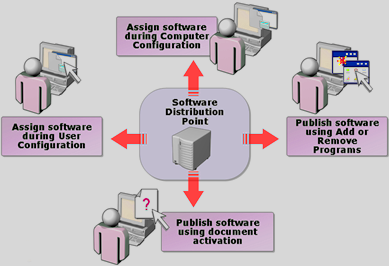 There are two deployment methods:
- Assigning – Software is not installed; a user shortcut is created that installs it automatically when launched.
- Publishing – Software is installed automatically. Afterwards it appears in Control Panel – Add or Remove Programs
Modifications before deployment
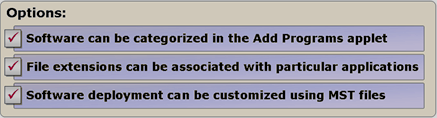 Installation packages can be modified before deployment:
- Categories – define categories to organise packages
- Associating file extensions – specify which file extensions open automatically in the newly installed software
- Modifying applications – customise installation packages in advance using *.mst (customisation) and *.msp (modification)
Modifying installation packages
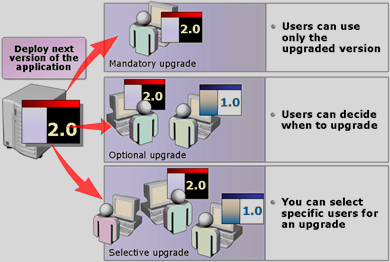
To modify an installation package (updates, etc.), use:
- Mandatory upgrades – automatically remove the previous version and replace it with the new one. Installation may require two logons
- Optional upgrades – let the user choose whether to upgrade or continue using the previous version
- Redeployment – reinstalling
Package removal options:
- Forced removal – removes the software at the next logon
- Optional removal – does not remove the software at the next logon, allowing the user to decide whether to keep or remove it
Komentáře