


A workstation running Windows 7/Vista/XP can also act as a network router, useful for quickly connecting networks with different address ranges when a professional router is unavailable. In this example, a Windows XP workstation connects network A (10.10.10.0/24) with network B (192.168.20.0/24) while providing Internet access to both.
Example of configuring Windows XP as a network router connecting two separate networks
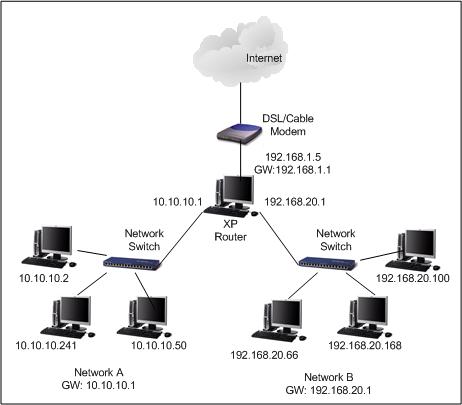
1) Configuring the router's network adapters (Windows XP)
Network adapter A (connection to network A):
IP: 10.10.10.1
Netmask: 255.255.255.0
Gateway: [leave blank]
Network adapter B (connection to network B):
IP: 192.168.20.1
Netmask: 255.255.255.0
Gateway: [leave blank]
Network adapter C (Internet connection through a DSL modem)
IP: 192.168.1.5
Netmask: 255.255.255.0
Gateway (GW): 192.168.1.1
2) Configuring all computers in network A (Network A):
Network A
IP: 10.10.10.0 (e.g. PC1 – 10.10.10.2, PC2 – 10.10.10.3)
Netmask: 255.255.255.0
Gateway (GW): 10.10.10.1
3) Configuring all computers in network B (Network B):
Network B
IP: 192.168.20.0 (e.g. PC1 – 192.168.20.2, PC2 – 192.168.20.3)
Netmask: 255.255.255.0
Gateway: 192.168.20.1
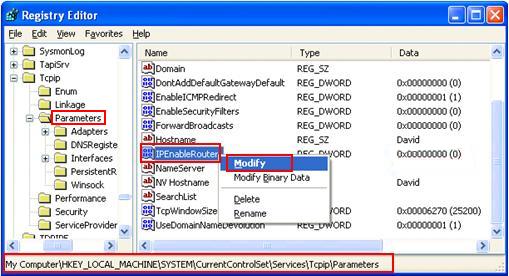
4) Registry change to enable routing on Windows XP
- start Registry Editor using the command-line command regedit. (also start – Run and enter regedit)
- find IPEnableRouter, located at HKEY_LOCAL_MACHINE\SYSTEM\CurrentControlSet\Services\Tcpip\Parameters
- right-click the entry, select Modify and change its value from 0 to 1
- save everything and restart the workstation
Komentáře