


Example of using AppDeploy Repackager (creating an MSI package from exe and other applications)
Application description
The application AppDeploy Repackager is used to create msi package from exe and other applications. A very useful tool if, for example, you need to distribute applications through GPO, which requires MSI packages.
The application creates an MSI installation package by scanning C: and the registry, then installing the relevant EXE program and scanning C: and the registry again. The differences are used to build an MSI installation package for that application.
Recommendation: We recommend using AppDeploy Repackager on Virtual PC, where you can ensure a completely clean system without other applications.
Installation
Download the application: http://www.appdeploy.com/tools/repackager/
Creating an MSI package from an EXE program – EXE to MSI
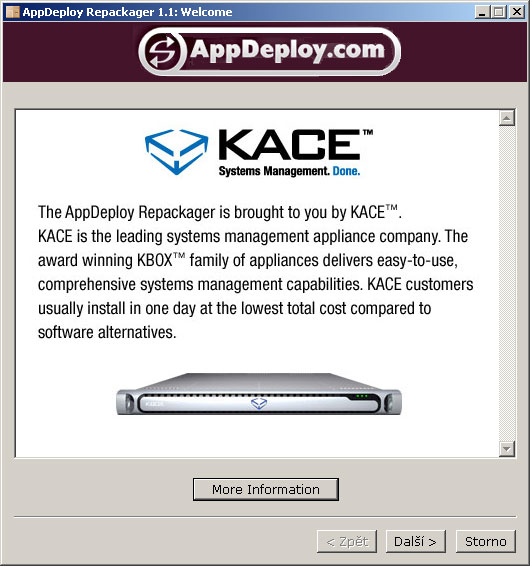
Start the application AppDeploy Repackager and continue by clicking Next
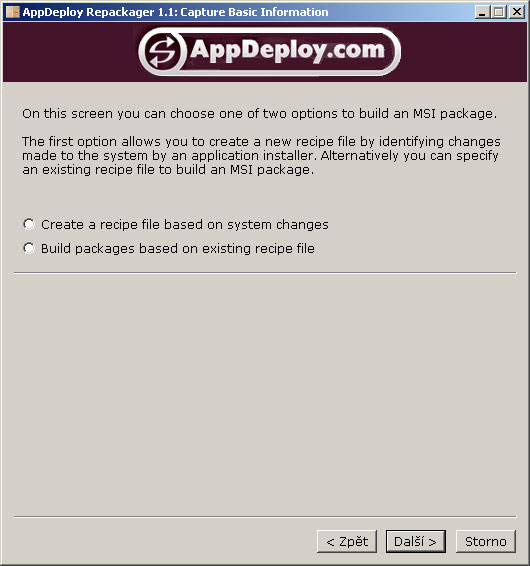
Select – Create a recipe file based on system changes – continue by clicking Next
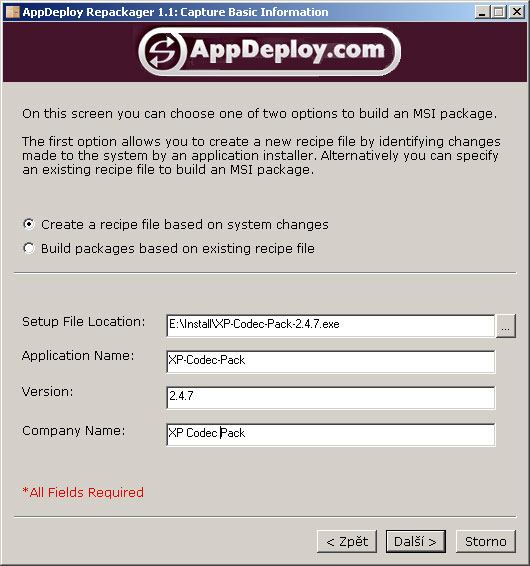
Select the EXE applicationyou want to convert to an MSI package and add a description – continue by clicking Next
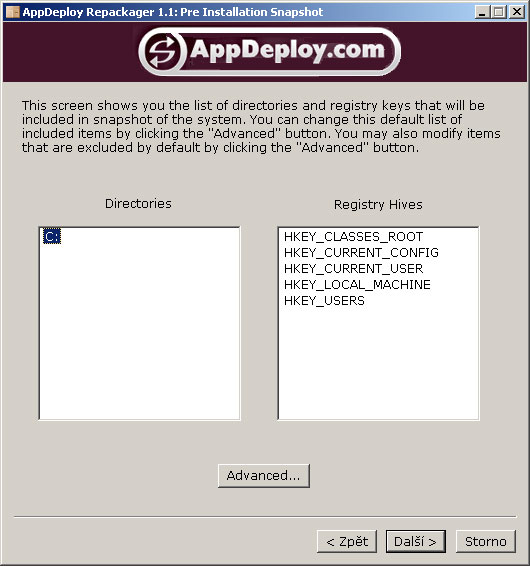
Keep the default scan scope of the entire C: drive and registry, or adjust it using Advanced – continue by clicking Next
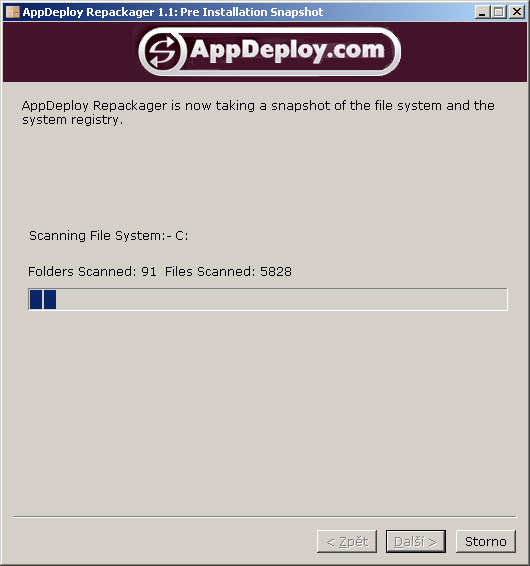
Wait for the initial computer scan to finish
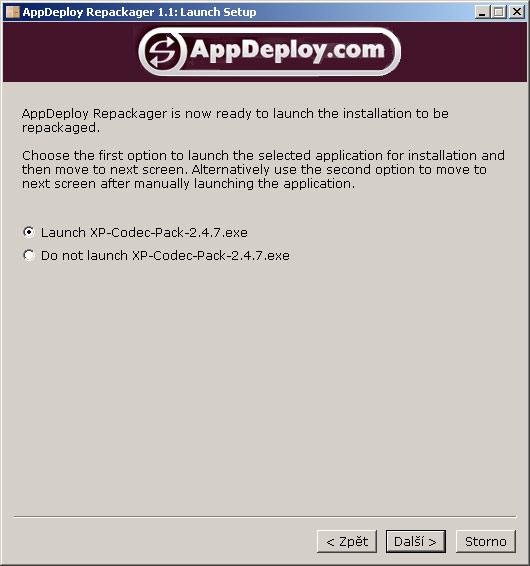
Select the Launch "your selected application" – continue by clicking Next
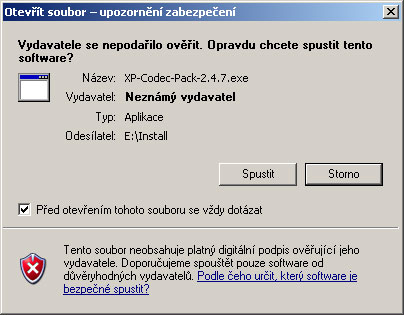
Install "your selected application" – continue by clicking Run
After installation "your selected application" continue by clicking Next
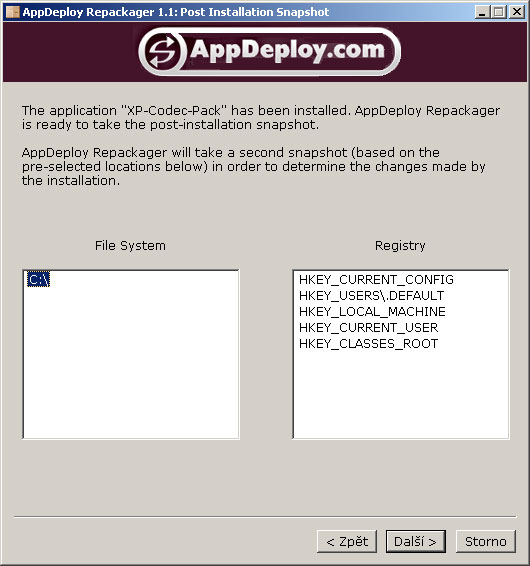
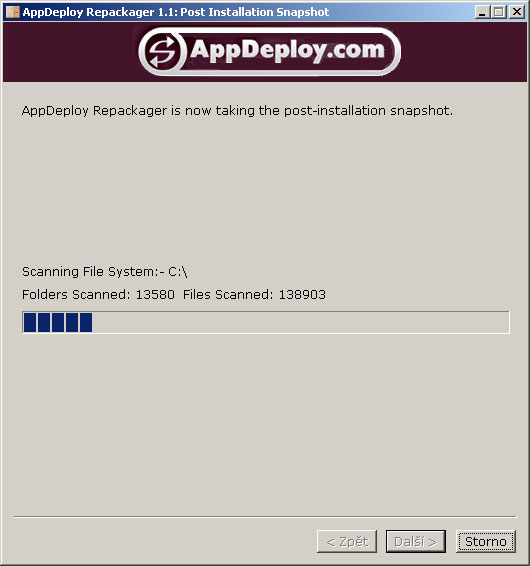
Wait for the application to scan all changes made by the installation "your selected application"
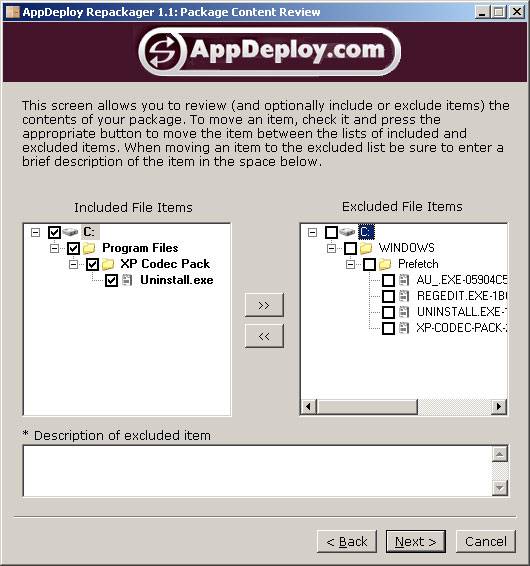
Check that Excluded File Items does not contain items that should be included in the MSI package; move them to Included File Items – continue by clicking Next
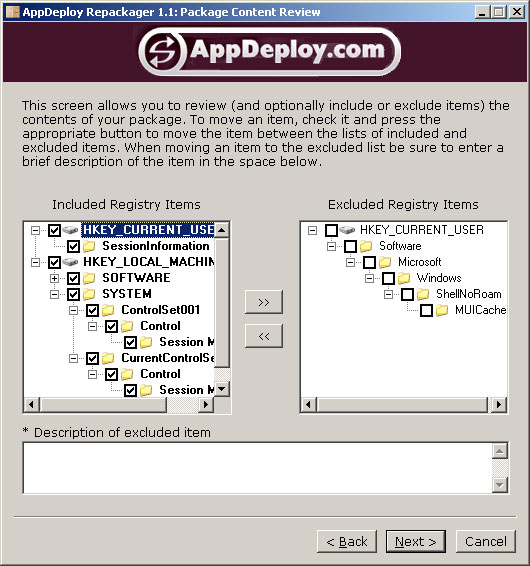
Check that Excluded Registry Items does not contain items that should be included in the MSI package; move them to Included Registry Items – continue by clicking Next
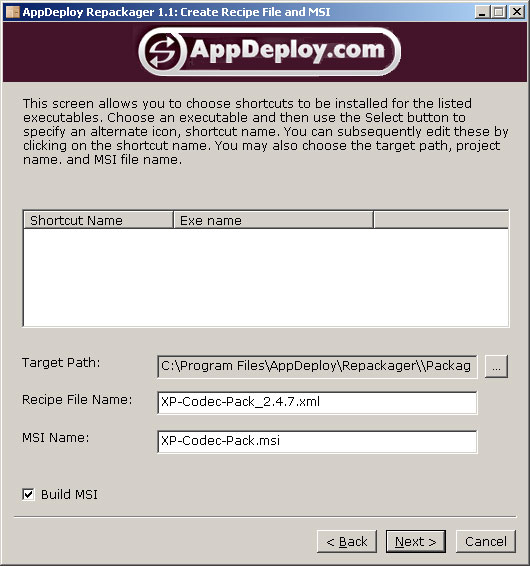
If the installation created executable applications, select their icons under Shortcut Name and specify whether their shortcuts should also appear on the user's desktop after installation. Finish creating the MSI package by clicking Next
Komentáře