


Most of us expect NumLock to be enabled at Windows startup. It is frustrating when a new laptop/PC's simplified BIOS no longer offers that option.
This happened on my new laptop, so I decided to enable NumLock automatically through Windows 10.

These instructions concern Windows 10, specifically build 1607. They should also work on later Windows 10 builds, but not Windows 8 or 7.
Many guides exist online, but only specific registry values worked for me, as explained below.
Before editing the registry, follow these simple steps:
- Verify that your BIOS really lacks this option
- Edit the registry so Windows enables NumLock automatically at startup.
Enabling NumLock in BIOS
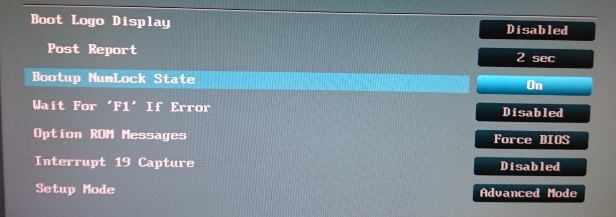
BIOS options vary, and graphical interfaces are increasingly common, as on my PC pictured above.
Check your BIOS again:
- Shut down the laptop/PC (a restart may not suffice)
- Turn it on and repeatedly press the BIOS key (F1, F2 or Del depending on the model; I try them all and one usually works :-))
- Find an option containing NumLock (e.g. NumLock, Numlock Key, Bootup NumLock State or Bootup Num-Lock)
- Change it to ON
If successful, nothing else is needed: NumLock will enable automatically at Windows 10 startup.
Automatically enabling NumLock through the registry
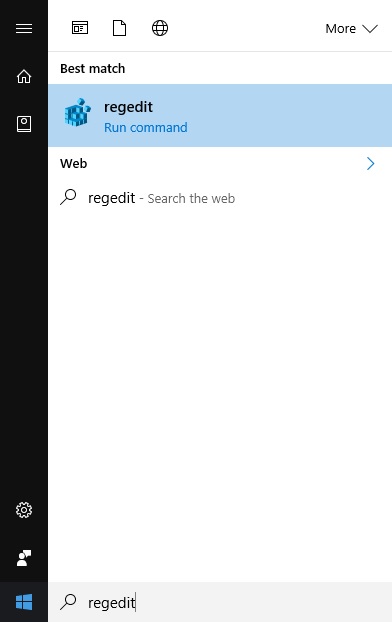
If BIOS offers no solution, open Registry Editor by typing regedit in Start or pressing [Win] + [R] and entering regedit
Find the registry key HKEY_USERS\.DEFAULT\Control Panel\Keyboard and change the string value “InitialKeyboardIndicators” na “2147483650”.
Its original value may be “2” or “2147483648”

Repeat for the key HKEY_CURRENT_USER\Control Panel\Keyboard again changing the string value “InitialKeyboardIndicators” na “2147483650”
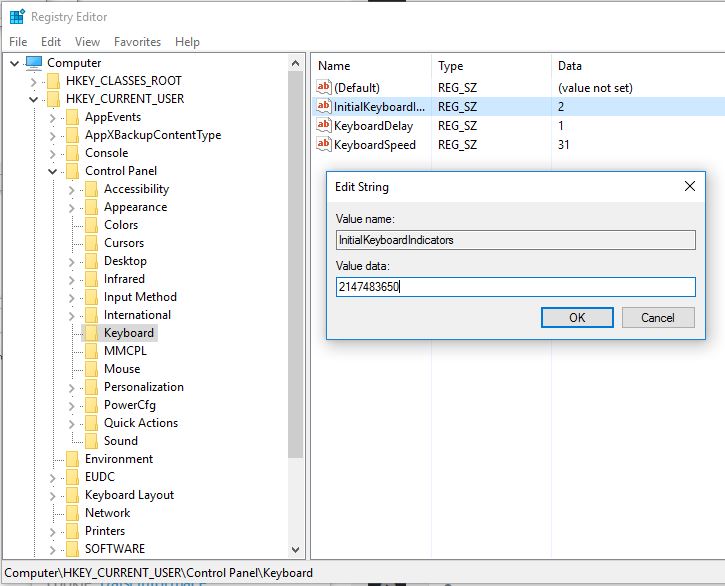
After restarting, NumLock should enable automatically at Windows 10 startup.
Komentáře