


With Windows 8 and the new Hyper-V, I could not resist finally converting my work PC into a virtual machine. A unified workstation that could easily move to another PC after hardware failure was very appealing.
I installed a clean Windows 7 VM and only essential software in proven versions for maximum compatibility. Everything worked until I tried to use Lync with two-way audio. The new Hyper-V console still lacks this support, leaving RDP as the alternative, but even that is not straightforward :-).
Enabling remote audio recording in the RDP client.
First, I opened Remote Desktop Connection and enabled "Play on this computer" and "Record from this computer" in remote audio settings.
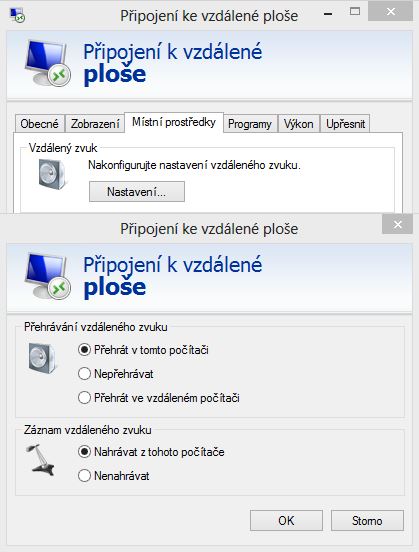
My headphones immediately worked, but microphone audio still did not.
Besides enabling remote audio recording on the source computer (Windows 8), audio capture must also be enabled on the destination (Windows 7). A policy controls this and defaults to disabled unless configured otherwise.
Enabling audio capture in the registry.
On the destination computer, open an administrator command prompt (CMD) and run: regedit
Find the branch RDP-Tcp
HKLM\SYSTEM\CurrentControlSet\Control\Terminal Server\WinStations\RDP-Tcp
- fDisableAudioCapture REG_DWORD 1 change to 0
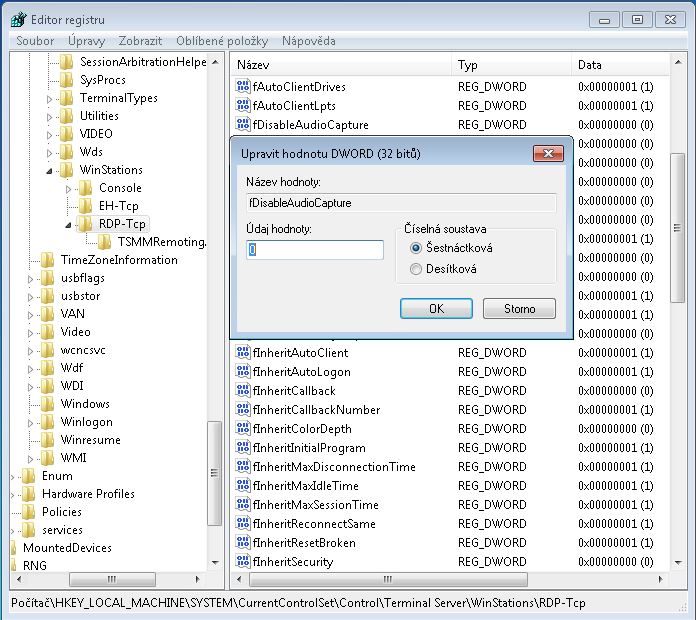
Success at last: everything works as intended.
Komentáře