


Example of using ExMerge (Microsoft Exchange Server Mailbox Merge Wizard)
ExMerge
Application description
The application ExMerge (Microsoft Exchange Server Mailbox Merge Wizard) exports and subsequently imports Exchange 2003 mailboxes using *.pst files. A very useful tool for moving mailboxes between servers (recovery, etc.)
Installation
Download the application: http://www.microsoft.com/downloads/details.aspx?displaylang=en&FamilyID=429163ec-dcdf-47dc-96da-1c12d67327d5
You may encounter problems when launching the application; here is the solution:
Problem description:
After extracting the application and running ExMerge.exe you may see the error: The application failed to start because EXCHMEM.dll was not found.
Solution:
Into the directory where you extracted ExMerge.exe copy the library EXCHMEM.dll from: C:\Program Files\Exchsrvr\bin
Exporting Exchange 2003 mailboxes to *.pst files
Important!!!
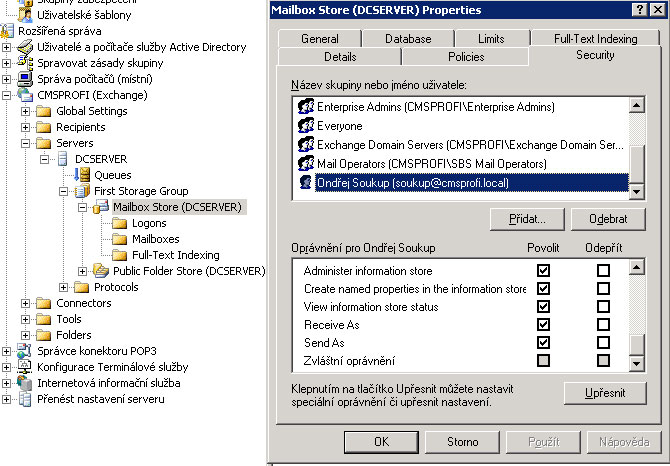
Before starting the export, run ExMerge.exe under an account other than Administrator (otherwise the export would fail with error 0x8004011d). This is because the Administrators account is denied the Mailbox Store tab's Security permissions Receive As and Send As.
!! Use or create a different account that is not a member of Administrators, and allow Receive As and Send As on the Mailbox Store Security tab!! See Figure 1
Copy the entire queue from: C:\Program Files\Exchsrvs\Mailroot\vsi 1\Queue. These are messages that have not yet been delivered. After importing, copy this queue to the new server and the messages will then be delivered.
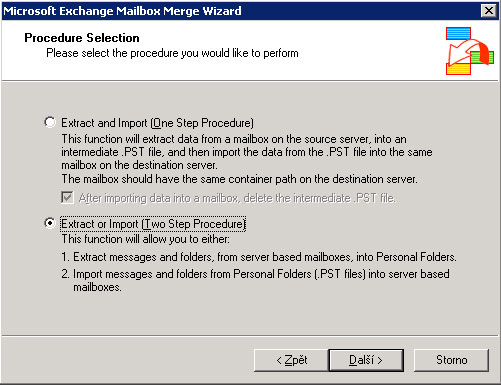
Select – Extract or Import (Two Step Proceduer) – continue by clicking Next
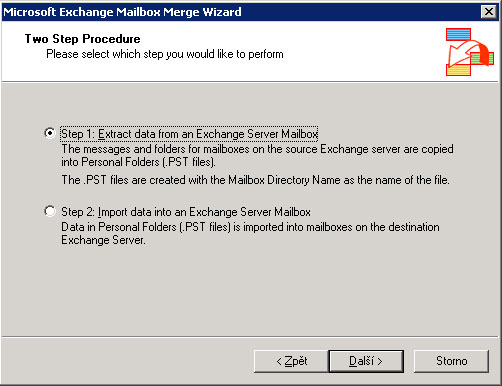
Select – Step 1 – continue by clicking Next
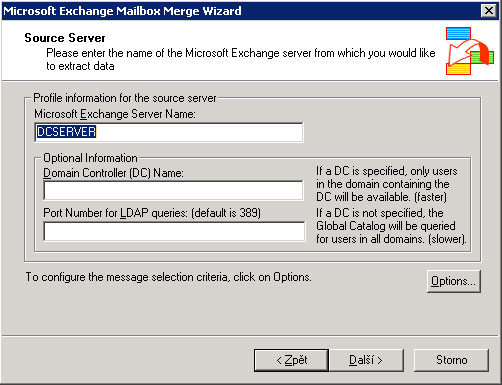
Fill in – Microsoft Exchange Server Name – continue by clicking Next
Select the user mailboxes to export – continue by clicking Next
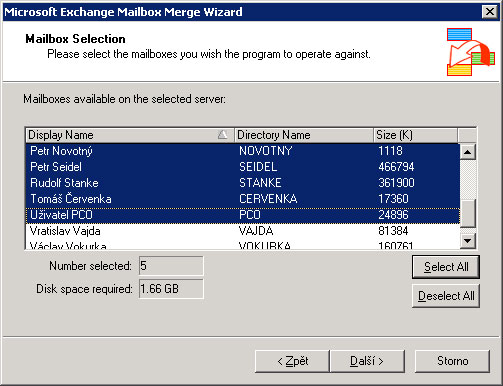
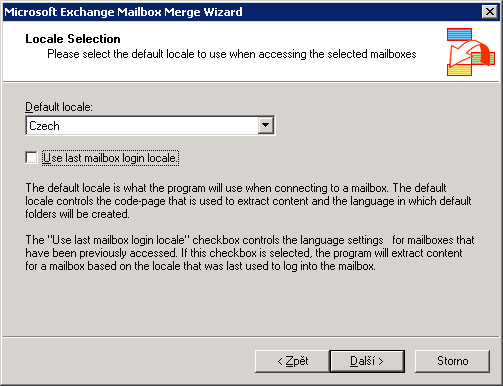
Select the language used by the mailboxes you want to export – continue by clicking Next
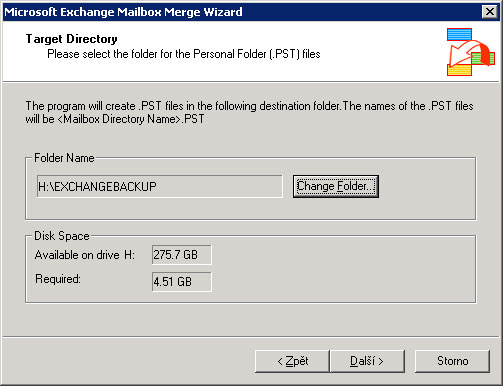
Select the directory in which to save the exported PST files – continue by clicking Next
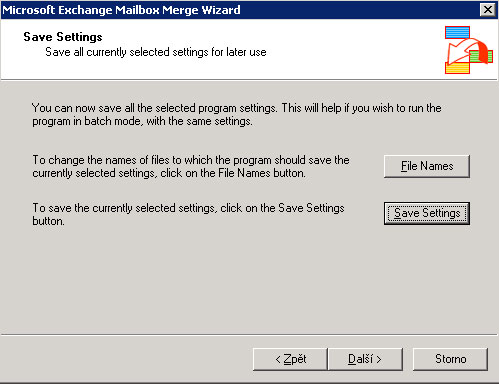
Save the settings if needed; otherwise continue by clicking Next
Mailbox backup progress
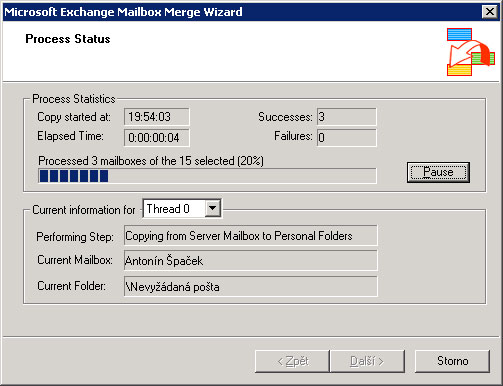
Importing Exchange 2003 mailboxes from *.pst files
Important!!!
Before starting the import, the mailboxes to be imported must already exist on the Exchange server!! On a newly installed server, use Outlook Web Access for the user's first logon to create the account on the Exchange server.
Select – Extract or Import (Two Step Proceduer) – continue by clicking Next
Select – Step 2 – continue by clicking Next
Fill in – Microsoft Exchange Server Name – continue by clicking Next
Select the user mailboxes to import – continue by clicking Next
Select the language used by the mailboxes you want to import – continue by clicking Next
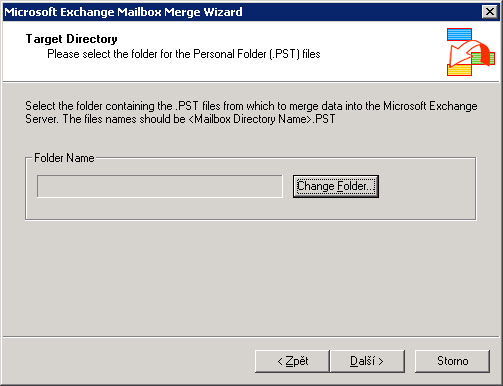
Select the directory containing the PST files to import – continue by clicking Next
Everything should now work without problems. If something does go wrong, I recommend www.google.com 🙂
Komentáře