


Installing operating systems from USB flash drives or memory cards is increasingly common, for example on small laptops without DVD drives.
Here is an easy way to install Windows from USB using WINDOWS 7 USB/DVD DOWNLOAD TOOL
What you need
Before turning a USB drive into OS installation media, obtain:
- A USB flash drive (memory card) of at least 4 GB.
- Windows 8 or 7 as an ISO image.
- The Microsoft tool "Windows 7 USB/DVD download tool“.
If you downloaded an image ending in .IMG, simply rename it to .ISO
The tool "Windows 7 USB/DVD download tool" is free to download HERE
Using Windows 7 USB/DVD download tool
Once ready, install and launch "Windows 7 USB/DVD download tool“.
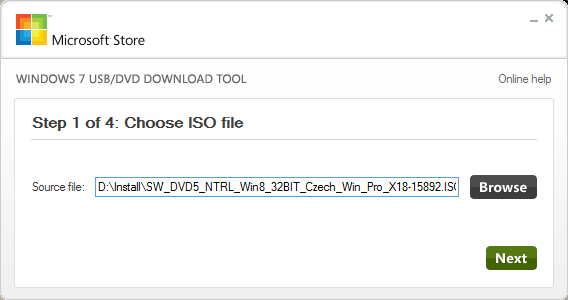
Step 1 – select the ISO image
Use “Browse” to select the OS ISO file on your computer, then continue with “Next”.
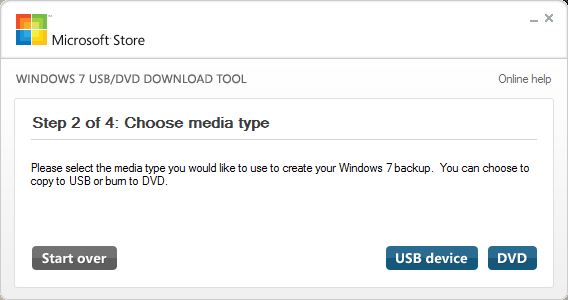
Step 2 – select the installation media type
Use “USB device” to select USB media.
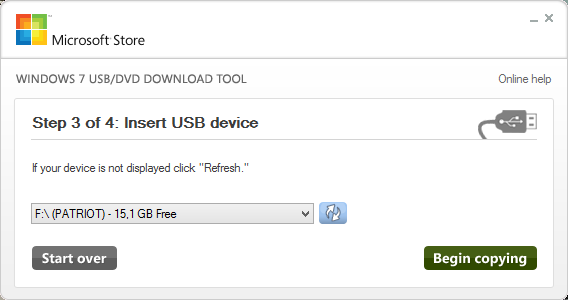
Step 3 – connect the USB drive
Connect the USB drive, select it from the list and continue with “Begin copying”
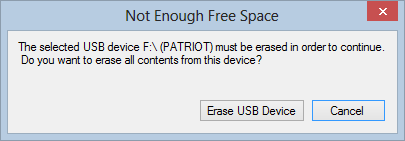
If it is not empty, confirm erasing it by clicking “Erase USB Device”.
Step 5 – finish
The tool "Windows 7 USB/DVD download tool" formats the USB drive and copies installation files from the selected ISO image.

Installing Windows from USB
Connect the prepared installation drive to the target device and choose Boot from USB device at startup.
Komentáře