


Backups are essential to domain maintenance, ensuring lost or damaged AD DS data can be recovered after a disaster.
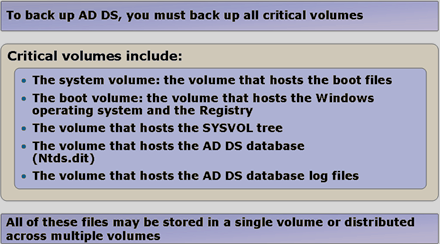
Windows Server 2008 largely redesigns backup. Backups operate at block level and always include entire disk volumes, both boot and system volumes.
Use Windows Server Backup or Wbadmin.exe, installing them first through Add Features in Server Manager. Wbadmin.exe also requires PowerShell.
Backing up System State
System State components requiring backup depend on installed server roles.
System State includes at least:
- Registry
- COM+ Class Registration database
- Boot files, as described earlier in this topic
- Active Directory Certificate Services database
- AD DS database
- SYSVOL directory
- Cluster service information
- Microsoft Internet Information Services (IIS) metadirectory
- System files that are under Windows Resource Protection
Backing up using Windows Server Backup
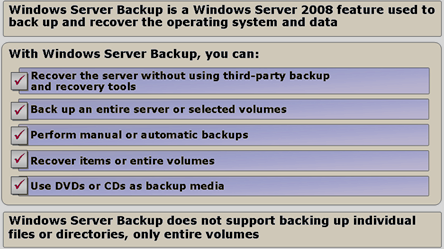
Use the Windows Server Backup console, first installing it through Add Features in Server Manager.
New Windows Server Backup features:
- faster backups using VSS (Volume Shadow Copy Service)
- simple recovery, including individual files
- easier operating system repair using new tools
- remote administration through MMC
- free-space monitoring for scheduled backups
- command-line support
Backup types:
- manual (Windows Server Backup or Wbadmin.exe)
- scheduled (Windows Server Backup or Wbadmin.exe)
Backups can be stored on:
- disks
- shared directories
- DVD/CD
- USB drives
Tape backups are no longer supported!
AD DS recovery options

Windows Server 2008 provides several AD DS recovery options, depending on the disaster scenario.
Windows Server 2008 supports:
|
Recovery option |
Description |
| Normal restore (Normal restore) |
A normal (non-authoritative) directory restore returns the system to its backup state. Normal replication then updates the data. Use it only if other DCs do not contain errors that replication would reintroduce to the restored DC. |
| Authoritative restore (Authoritative restore) |
An authoritative restore recovers objects and containers deleted from AD DS. Perform a normal restore without network connectivity, then use Wbadmin.exe to designate all AD DS data or selected OUs or objects as authoritative. Designate the entire restore when corruption has replicated to all DCs. Designate individual objects (such as a deleted OU) so the restored server receives updates from other DCs while sending them the authoritative restored object. |
| Full server restore (Full Server restore) |
Use when restoring the DC cannot resolve the problem. All server disks are reformatted according to the backup. Use when restoring to new hardware or all earlier recovery options have failed |
| Alternative location restore (Alternative Location restore) |
Used when installing a new domain controller |
Normal restore (Nonauthoritative AD DS Restore)
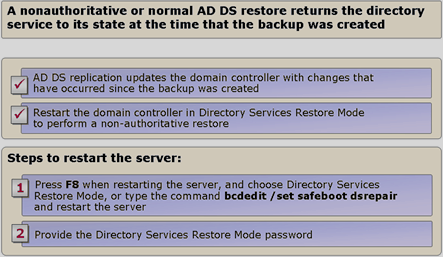
For a normal (non-authoritative) restore restart the server into DSRM (Directory Services Restore Mode).
Ways to restart into DSRM:
1) Press F8 during server boot
2) Use Bcdedit.exe and enter bcdedit /set safeboot dsrepair, to boot into DSRM after restarting; following the restore, use bcdedit /deletevalue safeboot dsrepair to return to normal startup.
Authoritative restore (Authoritative AD DS Restore)
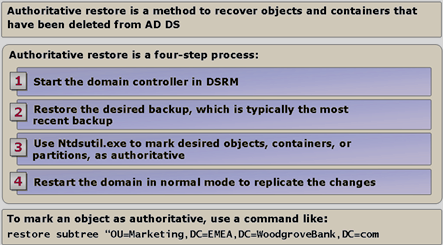
An authoritative restore specifies which restored data becomes authoritative for subsequent replication, overwriting conflicting data on other DCs. This recovers deleted objects or fixes database inconsistencies replicated throughout AD DS.
Follow a normal restore, then run ntdsutil.exeto designate the authoritative restored data.
What is the Database Mounting Tool? (Dsamain.exe).
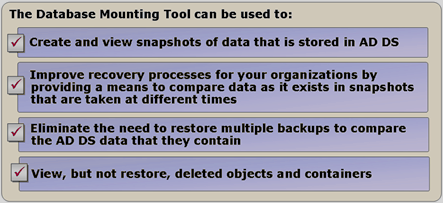
Database Mounting tool (Dsamain.exe) lets administrators create AD DS database snapshots and view them later. Snapshots allow examination, not restoration, of deleted accounts and earlier AD DS states.
Recovering deleted objects without a backup (Reanimating Tombstoned AD DS Objects)
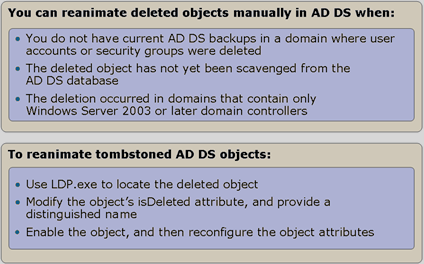
Deleted AD DS objects remain for 180 days as tombstones, with their isDeleted attribute set to True. They retain only critical information, such as (SID, ObjectGUID, LastKnownParent, SAMAccountName).
These objects can still be restored within 180 days using LDAP tools and changing isDeleted to False.
Komentáře