


Office Online Server arrived with SharePoint Server 2016 and replaces Office Web Apps Server for SharePoint 2013. Like SharePoint Server 2016, Office Online Server receives regular cumulative updates (CUs), but the update procedure is very different.
First, forget the rule that a product has only one RTM release. Office Online Server already has its third RTM release, with two new RTM releases planned each year. Of course, each RTM release has its own cumulative updates (CUs) and even language packs. Don't believe me?
“Microsoft plans to release new builds of Office Online Server twice each year, with each new build supported for approximately six months from its general availability (GA) release date.” see the article Office Online Server release schedule.
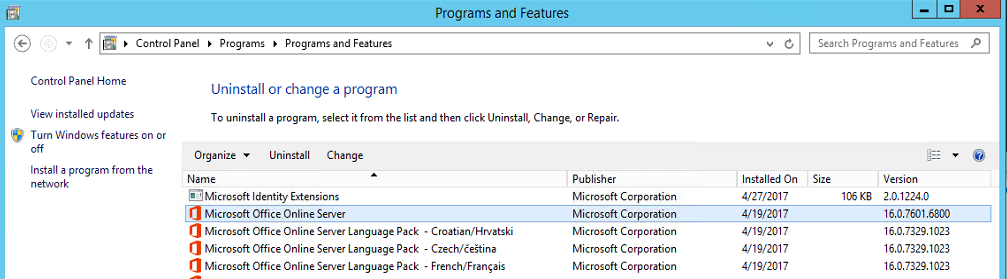
To update Office Online Server, first identify the version you are using and check whether a newer RTM release is available. Based on this, either ‘just’ install the cumulative update (CU), or reinstall Office Online Server entirely with the new RTM release.
Version
| RTM Build | Released | End of support |
|---|---|---|
| 16.0.6814.2226 | 4.5.2016 | 18.11.2016 |
| 16.0.7601.6800 | 18.11.2016 | 18.4.2017 |
| 16.0.7766.8550 | 18.4.2017 | September 2017 |
The easiest way to check the current Office Online Server version is through Control Panel, as shown here: Control Panel – Programs and Features
Preparing to update Office Online Server
Check the version
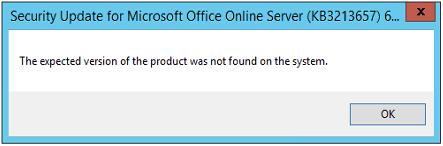
The first step is to verify that you are using the latest RTM release. If you try to install a cumulative update (CU) without it, you will receive the error message ‘The expected version of the product was not found on the system.”
If you are using the latest RTM release, you can proceed directly to installing the CU; see step: Installing a CU . Otherwise, completely uninstall the current Office Online Server release and install the latest RTM release; see step: Installing a new RTM release.
Save the current configuration
Before doing anything, I recommend saving the current Office Online Server farm configuration. This lets you compare the new installation with the original and adjust parameters if necessary.
Get-OfficeWebAppsFarm > c:\OfficeOnlineServer.txt

Get-OfficeWebAppsExcelBIServer > c:\OfficeOnlineExcelBI.txt

Get-OfficeWebAppsExcelUserDefinedFunction > c:\OfficeOnlineExcelUserDef.txt
Prepare the deployment script
Whether you are installing a new RTM release or just a CU, you must first remove the Office Online Server farm (Remove-OfficeWebAppsMachine) and then deploy it again (New-OfficeWebAppsFarm). For this reason, prepare the script in advance so you do not have to deal with it during every update. This is the same script you used to deploy the Office Online Server farm; alternatively, you can build a new one from its current configuration, as described in step: Save the current configuration. For reference, here are a few examples of Office Online Server farm deployments.
Example with internal access only:
New-OfficeWebAppsFarm -InternalUrl "http://office_online_server.domena.local" -AllowHttp -EditingEnabled
Example with external SSL access:
New-OfficeWebAppsFarm -InternalUrl "http://office_online_server.domena.local" -ExternalUrl "https://externi_dns_office_online.domena.cz" -CertificateName "externi_dns_office_online.domena.cz" -AllowHttp -EditingEnabled
See also: Parametrizace New-OfficeWebAppsFarm
Office Online Server update procedure
Installing a new RTM release – First server
- Remove the Office Online Server farm using:
Remove-OfficeWebAppsMachine - Verify that all IIS web applications have been removed
- Uninstall Microsoft Office Online Server and any language packs
- Restartujte server
- Install the new Microsoft Office Online Server RTM release (download it from: Volume Licensing Service Center (VLSC))
- Install the new language packs (Office Online Server Language Pack)
- Install the latest CU
- Restartujte server
- Deploy the new Office Online Server farm; see step: Prepare the deployment script
- Verify that the Office Online Server farm is available at: http(s)://officeonlineserver/hosting/discovery
Installing a new RTM release – Additional servers (HA)
- Remove the Office Online Server farm using:
Remove-OfficeWebAppsMachine - Verify that all IIS web applications have been removed
- Uninstall Microsoft Office Online Server and any language packs
- Restartujte server
- Install the new Microsoft Office Online Server RTM release (download it from: Volume Licensing Service Center (VLSC))
- Install the new language packs (Office Online Server Language Pack)
- Install the latest CU
- Restartujte server
- Join the server to the Office Online Server farm using:
New-OfficeWebAppsMaschine -MachineToJoin"prvni_office_online_server.domena.local" - Verify that the Office Online Server farm is available at: http(s)://officeonlineserver/hosting/discovery
- Repeat this procedure for all other Office Online Servers
Installing a CU – First server
- Remove the Office Online Server farm using:
Remove-OfficeWebAppsMachine - Verify that all IIS web applications have been removed
- Install the latest CU
- Restartujte server
- Deploy the new Office Online Server farm; see step: Prepare the deployment script
- Verify that the Office Online Server farm is available at: http(s)://officeonlineserver/hosting/discovery
Installing a CU – Additional servers (HA)
- Remove the Office Online Server farm using:
Remove-OfficeWebAppsMachine - Verify that all IIS web applications have been removed
- Install the latest CU
- Restartujte server
- Join the server to the Office Online Server farm using:
New-OfficeWebAppsMaschine -MachineToJoin"prvni_office_online_server.domena.local" - Verify that the Office Online Server farm is available at: http(s)://officeonlineserver/hosting/discovery
- Repeat this procedure for all other Office Online Servers
Komentáře