


Most of us know that SharePoint 2013 and 2016 include a service called Distributed Cache. What you may not know is that this is not a SharePoint service as such, but a separate application, Microsoft App Fabric 1.1, installed as a SharePoint prerequisite. Like SharePoint, Microsoft App Fabric 1.1 has its own cumulative updates (CUs). If you have only been updating SharePoint so far, pay attention: your Distributed Cache service is probably not up to date.
An outdated Distributed Cache service can cause many problems affecting the performance of the entire SharePoint farm. Take these updates seriously and remember the correct procedure, which includes configuration changes as well as installing the CU.
Version
- RTM: 1.0.4632 (29.11.2011)
- CU1: 1.0.4639 (20.02.2012) – KB2671763
- CU2: 1.0.4644 (29.05.12) – KB2716015
- CU3: 1.0.4652.2 (27.11.2012) – KB2787717
- CU4: 1.0.4653.2 (28.03.2013) – KB2800726
- CU5: 1.0.4655.2 (03.03.2014) – KB2932678
- CU6: 1.0.4656.2 (27.02.2015) – KB3042099
- CU7: 1.0.4657.2 (01.09.2015) – KB3092423
- CU7 – Hotfix: 1.0.4658.2 (12.07.2016) – KB3199763 (Replaces the original CU7 KB3092423)
The first step is to identify which cumulative update you have installed. SharePoint prerequisites install Microsoft App Fabric 1.1 with CU1 for SharePoint 2013 and CU7 for SharePoint 2016. You might therefore think you are all set if you run SharePoint 2016, but do not be fooled.
Starting with CU3, the Distributed Cache configuration file must be modified manually (the Background Garbage collection fix). This also applies to SharePoint 2016 with CU7 already installed!
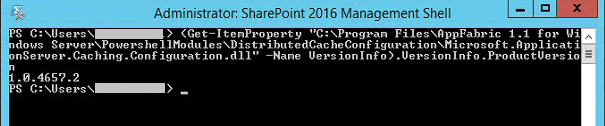
How do you check the current CU version of Microsoft App Fabric 1.1? You have two options. Either use Control Panel, as shown here: Control Panel – Programs and Features – View installed updates

or use PowerShell:
(Get-ItemProperty “C:\Program Files\AppFabric 1.1 for Windows Server\PowershellModules\DistributedCacheConfiguration\Microsoft.ApplicationServer.Caching.Configuration.dll” -Name VersionInfo).VersionInfo.ProductVersion
Distributed Cache update procedure
If you do not have the latest CU, you need to update Distributed Cache, or Microsoft App Fabric 1.1. Remember that Distributed Cache may run on more than one server (by default, all front-end servers). In that case, update all servers running Distributed Cache.
To update Distributed Cache, follow these steps using the SharePoint Management Shell
-
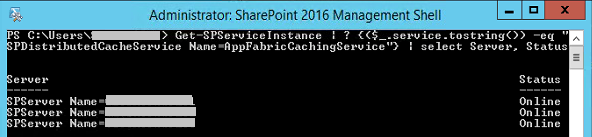
Check the status of Distributed Cache
Verify that all servers are Online.
Get-SPServiceInstance | ? {($_.service.tostring()) -eq "SPDistributedCacheService Name=AppFabricCachingService"} | select Server, Status
-
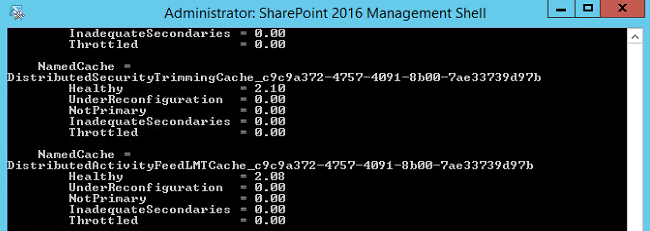
Check the health of Distributed Cache
Verify that Distributed Cache is healthy. All values other than ‘Healthy’ should be zero. ‘Healthy’ indicates the percentage of allocated memory; with a single server, the value is usually around 25. It decreases with each additional server.
Use-CacheCluster

Get-CacheClusterHealth
-
Stop and remove the Distributed Cache service instance
Stop-SPDistributedCacheServiceInstance –Graceful

Remove-SPDistributedCacheServiceInstance -
Verify that the server is no longer part of the Distributed Cache cluster
The server name will no longer appear in the list of Distributed Cache service instances.
Get-SPServiceInstance | ? {($_.service.tostring()) -eq "SPDistributedCacheService Name=AppFabricCachingService"} | select Server, Status -
Install the CU for Microsoft App Fabric 1.1
Start installing the CU for Microsoft App Fabric 1.1. Additional script windows will open during installation, so wait until it completes successfully.
-
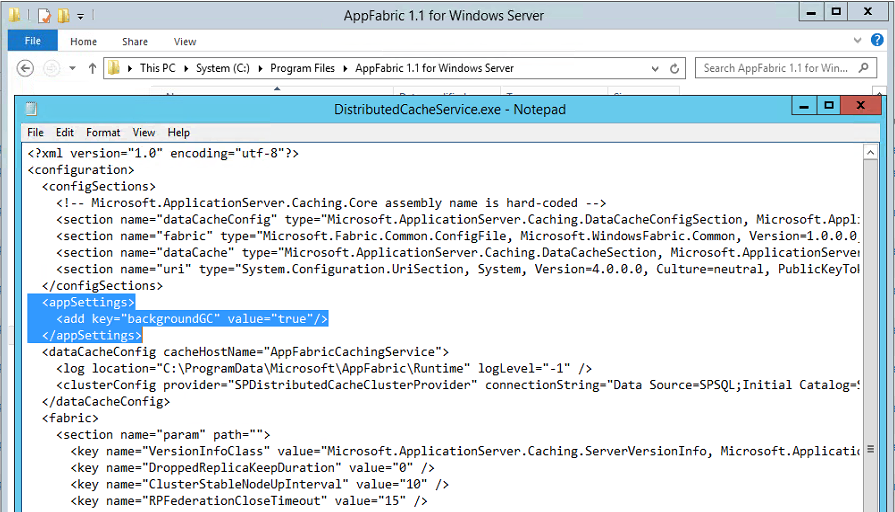
Check the ‘backgroundGC’ key in the Distributed Cache configuration file
Check that the Distributed Cache configuration file contains the <add key=“backgroundGC“ value=“true“/> entry.
File location: C:\Program Files\AppFabric 1.1 for Windows Server\DistributedCacheService.exe.CONFIG
 <appSettings>
 <add key="backgroundGC" value="true"/>
 </appSettings>
-
Perform an IIS reset
iisreset -noforce
-
Add the Distributed Cache service instance
Add-SPDistributedCacheServiceInstance
-
Verify that the server is part of the Distributed Cache cluster again
The server name will appear in the list of Distributed Cache service instances again.
Get-SPServiceInstance | ? {($_.service.tostring()) -eq "SPDistributedCacheService Name=AppFabricCachingService"} | select Server, Status -
Repeat for all other servers in the Distributed Cache cluster
If you have more than one Distributed Cache instance, repeat the previous procedure starting from step 3. Stop and remove the Distributed Cache service instance.
-
Restart the Distributed Cache cluster servers
Restart all servers in the Distributed Cache cluster.
-
Check the final status and health of the Distributed Cache cluster
Repeat these steps:
1. Check the status of Distributed Cache
2. Check the health of Distributed Cache
Komentáře